 HushKeep
Features — HushKeep
Every feature below is available on iPhone and iPad, in English and Japanese at launch with more languages to follow.
Pattern unlock, one vault per pattern
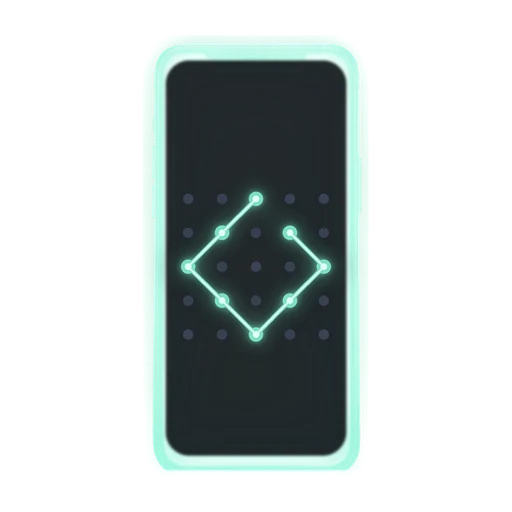
Create a vault from the lock screen with a pattern of 6 or more dots. Each pattern opens its own vault. The app keeps no list of your vaults — there is no “vaults” screen to browse, and a wrong pattern simply does nothing.
You can create as many vaults as you like. Unlimited vaults, free. We never count them.
Wrong attempts are throttled: after 5 free tries, the app waits 30 seconds, then 60, then 5 minutes, then 15, then an hour before each further attempt.
Recovery phrases
Every vault gets a recovery phrase — a sentence of 9 words generated on your device. Use it to open the vault if you forget the pattern, on any new phone. Capitalization and punctuation don’t matter; the app normalizes what you type. You can also write your own phrase (at least 4 words, 20 characters).
Your vaults can only be decrypted with your pattern or recovery phrase. We hold neither.
Encrypted iCloud backup
Backup is on by default, per vault, and can be turned off for any vault. Files are encrypted on your device with AES-256 before they’re saved or backed up, and backups are encrypted before they reach iCloud. Apple stores data it can’t read.
Backups run in the background, can be limited to Wi-Fi, and pause on their own when iCloud storage is full — nothing is deleted while a backup is paused. On a new phone, sign in to the same Apple ID and restore: with your pattern (iCloud Keychain required on the new device) or with your recovery phrase.
Secure camera
Take photos and videos straight into a vault. They are never written to your camera roll, and because HushKeep never asks for location access, captures carry no location data.
Import and export
Import photos, videos, Live Photos, GIFs and documents at original quality, or in a space-saving variant (photos downscaled to 4096 px, videos to 1080p HEVC). The system picker shows you only the items you choose to hand over.
When you import, you can choose to delete the originals from your library — HushKeep asks, and never does it silently. Items you delete from a vault go to a 30-day Recently Deleted folder; when they leave it, deleted files are erased and their keys destroyed. Exporting back to your library strips location data by default.
Privacy while the app is open
- Auto-lock closes every open vault when the app goes to the background, by default immediately, with 30 s, 1 min and 5 min options.
- Privacy cover hides vault content whenever the app is inactive or a screen capture is in progress, so your photos are not visible in the app switcher or in screen recordings.
- Hide pattern trail (optional) turns off the line that follows your finger while you draw.
Emergency (duress) pattern — Pro
The emergency pattern is a personal-safety feature. The emergency pattern opens a decoy vault and instantly destroys the keys to your other vaults on this device. It works once: after it opens the decoy vault, the emergency pattern is gone.
You set it up from inside the vault it protects, and at setup you can choose to also erase the iCloud backups of the other vaults (off by default — leave that off and they stay restorable from iCloud with their recovery phrases). See what to do if someone forces you to unlock your phone.
Alternate app icons — Pro
Seven generic utility glyphs — calculator, converter, level, compass, weather, clock, printer — so the app’s icon blends in on the Home screen. The icons don’t imitate Apple’s own apps; they are plain, generic shapes. The app’s name under the icon stays the same, because iOS shows it and the app cannot change that label.
Slideshow — Pro
Play a vault as a full-screen slideshow, useful for a quick glance through a set of photos without scrolling.
What the Free plan includes
Unlimited vaults, backup and restore, the secure camera, import and export, auto-lock and the privacy cover — with per-vault limits of 100 photos (including Live Photos and GIFs), 10 videos and 25 other files.
What Pro adds
- Removal of the per-vault item limits
- The emergency (duress) pattern
- Alternate app icons
- The slideshow
Pro is available as weekly, annual (with a one-week free trial) or lifetime, and a family plan is offered through the App Store page. Purchases are handled entirely by Apple; we never see your payment details. See the support page for how to manage or cancel a subscription.